 SnapDeck
Screenshots are useful for about four seconds.
After that, they're just another mystery file named Screenshot 2026-07-19.png buried in Finder. SnapDeck keeps your last 20 on a floating shelf — so you drag them straight into your work instead.
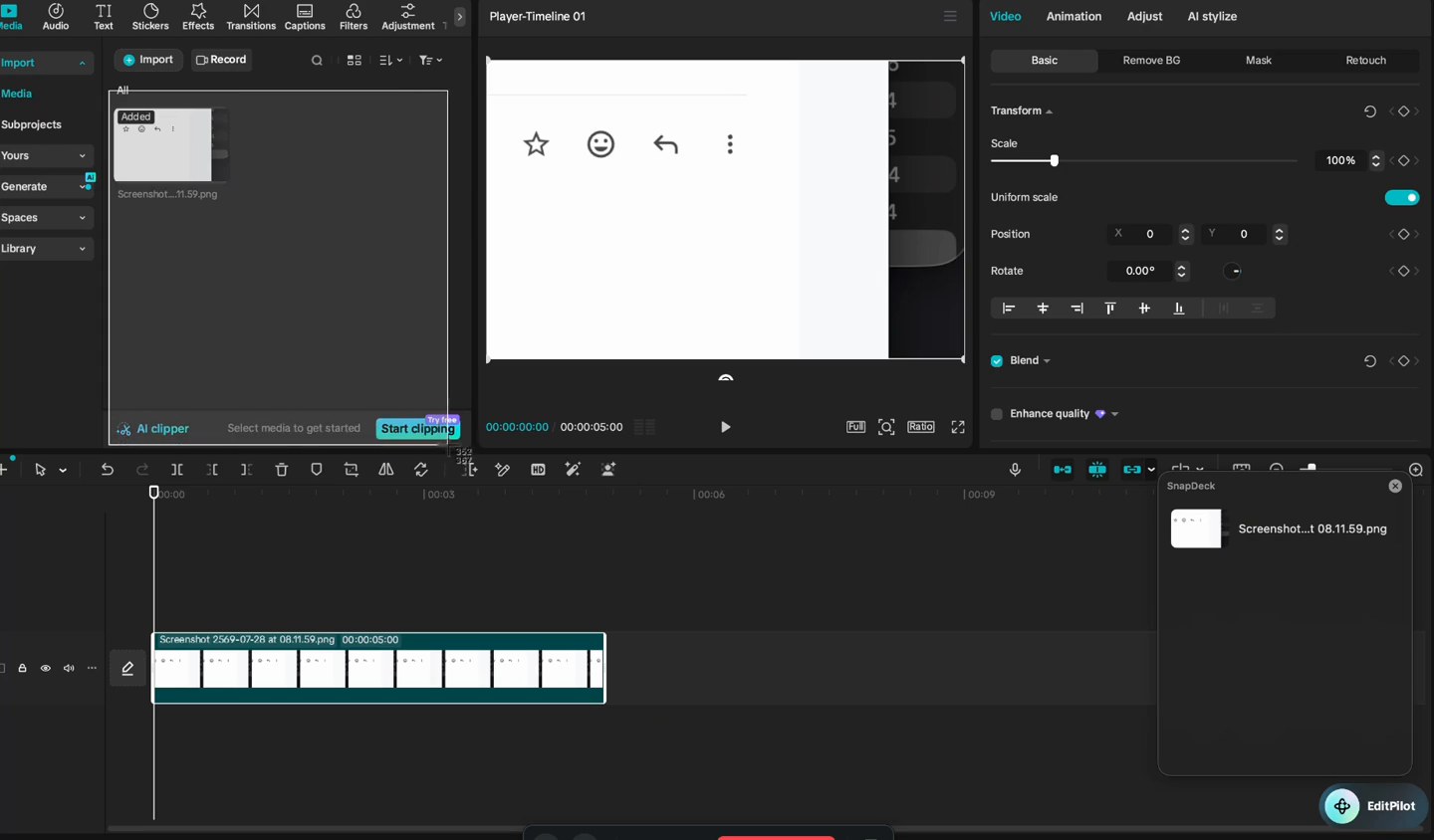
The shelf, mid-edit — see the full drag demo below
You know this moment.
You screenshot a reference, a bug, a frame worth keeping — mid-project, mid-thought. Then you alt-tab to Finder, scroll past forty files that all start with Screenshot 2026-07-19 at, and by the time you find the right one, you've lost the thread of what you were doing.
How it works
It lands on the shelf
The instant you capture a screenshot, it shows up on a small panel in the corner of your screen. No folders to open, nothing to set up.
You drag it where it belongs
Straight into Premiere, Slack, a ticket, Figma — anywhere. It works right over full-screen apps, too.
It stays. Or it ages off.
Reuse it as many times as you need. The shelf caps itself at 20, so it never becomes its own kind of clutter.
Want them the instant you capture?
macOS holds each new screenshot in a floating thumbnail for about five seconds before it saves — the exact gap SnapDeck was built to close. Turn that thumbnail off and screenshots land on your shelf the instant you take them. You lose nothing: the shelf is that thumbnail — permanent, and holding your last 20.
Seeing it beats reading about it.
One drag. That's the whole trick.
Only your screenshots. Nothing else.
Every design decision here was made on purpose — not as an afterthought.
Scoped to one folder
SnapDeck only watches your Screenshots folder. It has no access to anything else on your Mac.
We explain before macOS asks
You'll know exactly what you're granting and why, before the permission prompt ever shows up.
Your screenshots stay yours
Nothing is uploaded anywhere — your screenshots never leave your Mac. The only thing SnapDeck ever sends is your license key, to check your subscription.
Never touches your originals
SnapDeck only reads. It never moves, renames, or deletes the actual files sitting in Finder.
Why SnapDeck exists
I built SnapDeck after losing the same screenshot three times in one afternoon — buried under forty other files all named "Screenshot 2026…" on a Desktop I'd long since stopped trying to organize.
I didn't want a screenshot manager, or another app to learn. I wanted something that just held onto the thing I'd captured, right where I could see it, for exactly as long as I needed it.
That's SnapDeck. — Pun, creator of SnapDeck
Pay once. Not a subscription. Yours forever, on every Mac you own.
On your phone right now? No problem — buy today, and we'll email your download link and Mac install guide.